> For the complete documentation index, see [llms.txt](https://support.iafcertsearch.org/verifiers/llms.txt). Markdown versions of documentation pages are available by appending `.md` to page URLs; this page is available as [Markdown](https://support.iafcertsearch.org/verifiers/bulk-delivery/export-management/scheduled-exports.md).
# Scheduled Exports
## What it is
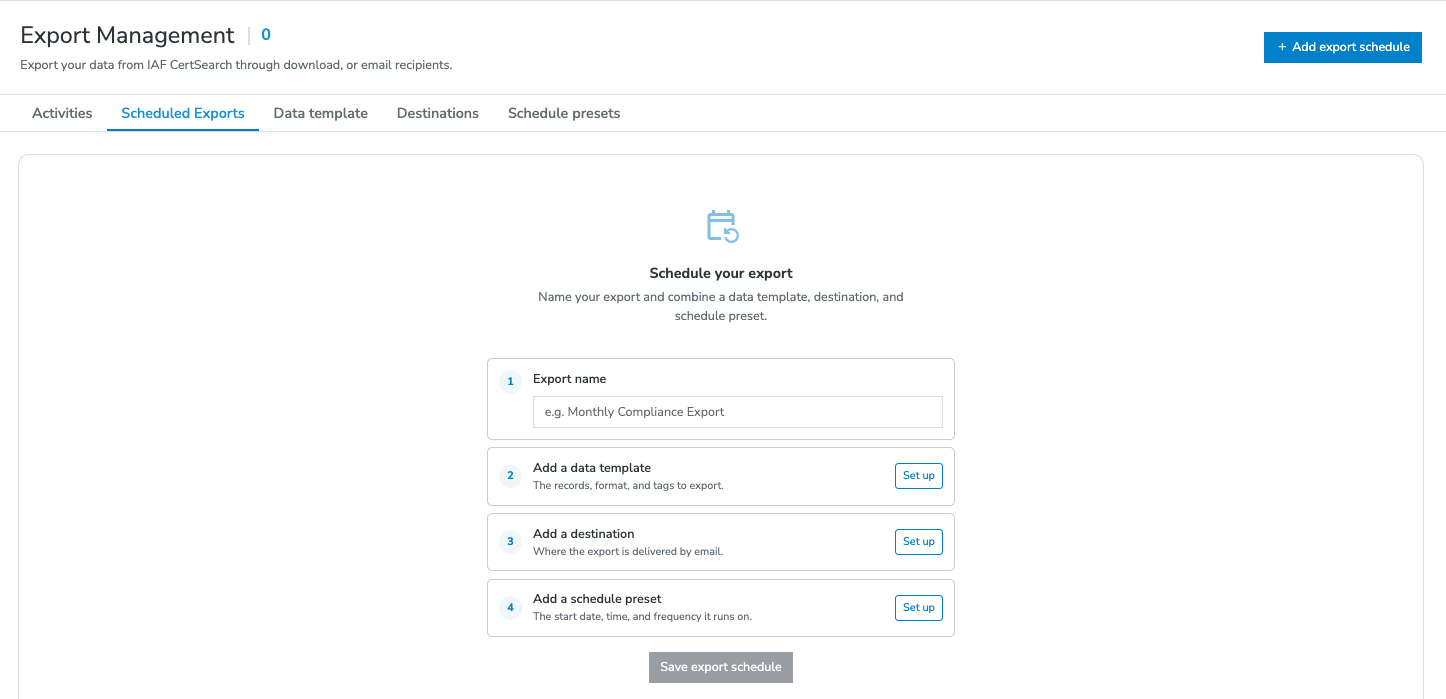
A scheduled export automatically emails a download link to a saved recipient group at the frequency and time defined by its schedule preset. You build it from three saved pieces: a [**template**](/verifiers/bulk-delivery/export-management/data-templates.md) (the what), a [**schedule preset**](/verifiers/bulk-delivery/export-management/schedule-presets.md) (the when), and a [**destination**](/verifiers/bulk-delivery/export-management/destinations.md) (the where, an FTP/SFTP connection or email recipient group).
## How to create one
1. Start a **new scheduled export**.
2. Choose the **data** — a saved template, or set the data and format directly.
3. Choose a **schedule preset** — the timing.
4. Choose a **recipient group** — who receives it.
5. Give it a **name** and save.
It now appears on the **Scheduled Exports** tab.
### Managing a schedule
* **View, search, and filter** your scheduled exports on the Scheduled Exports tab.
* **Open and edit** the full configuration at any time.
* **Pause and resume** — pausing stops future runs without deleting the setup; resuming restarts them.
* **Delete** a schedule you no longer need.
### Inside a scheduled export
Open any scheduled export to see its detail page, which has two tabs:
* **Overview** — the schedule's full configuration in one place: its name, the **template** it uses (data & format), the **schedule preset** (timing), and the **recipient group** it delivers to, along with its current status (active or paused). You view and edit the configuration here.
* **Activities** — the run history for *this* schedule only. Each past run shows its status, date, and record count, the **recipients** it was sent to, and a **Download** for completed runs. This is scoped to this one schedule; the main [**Activities** tab](/verifiers/bulk-delivery/export-management/activities.md) in Export Management shows every export across the account.
### Notifications
You get an in-app notification each time a scheduled export finishes or changes state:
* **Delivered** — for an FTP/SFTP schedule: *"Your scheduled export was delivered to \[destination]."* For an email schedule: *"Your scheduled export was sent to the recipients."*
* **Delivery didn't work, but status is completed —** The file was still generated, so you can download it from **Activities**.
* For FTP/SFTP: *"Your scheduled export couldn't be delivered to \[destination]."* Check the destination on your end (a saved connection can't be edited); a previously working one may have dropped.
* For email: *"Your scheduled export couldn't be sent to the recipients."*
* **Failed to generate and deliver** — *"Your scheduled export failed."*
* **Skipped** — *"Your scheduled export was skipped, no records to export."*
* **Paused or reactivated** — you're notified when a schedule is paused or turned back on.
## A note on shared pieces
Data templates, recipient groups, or scheduled presets can be used by more than one schedule, so they're protected while in use:
* A data template, recipient group, or scheduled preset used by any scheduled export — active or paused — **can't be deleted**. The delete option is greyed out with a tooltip explaining why.
* Once the last schedule using it is changed or deleted, you can delete it again.